
GUIDES
Generate CODESYS visualization pages with AI
An HMI page of moderate size means dragging dozens of elements, binding each one to a variable and aligning them by hand. With Rung Coder the AI creates the whole page in one step, with the bindings and the layout, and checks it before you open it. This guide explains what is supported and how the result is verified.
What the AI builds
The AI creates a visualization page with all its elements in a single call, instead of placing them one by one. It supports 11 element types:
- Controls: Button, Switch, Slider, SpinControl, Textfield and ComboBoxInteger.
- Indicators: Lamp, ProgressBar and Label.
- Structure: Rectangle as a background and Frame to embed other pages.
- Bindings set while the page is created: toggle and momentary buttons, switches, lamps, value displays and inputs, dynamic text and tooltips.
- Automatic layout as a grid, row, column or stack, plus navigation between pages, image pools and text lists. Placing an image on a page is still a manual step.
How the page is checked
- Before anything is written, the planned layout is checked for overlapping elements and elements outside the page.
- After the page is created, a layout check reports overlaps and out-of-bounds elements in detail. A Rectangle used as a backdrop is not counted as an overlap.
- An acceptance report then runs the remaining checks in order: pages and start page, WebVisu or TargetVisu configuration, the visualization task and a rebuild with its warnings classified.
- With the application running on a controller or soft PLC, the AI can take a screenshot of the WebVisu page, and click and type on it first, to look at the result itself.
An example prompt
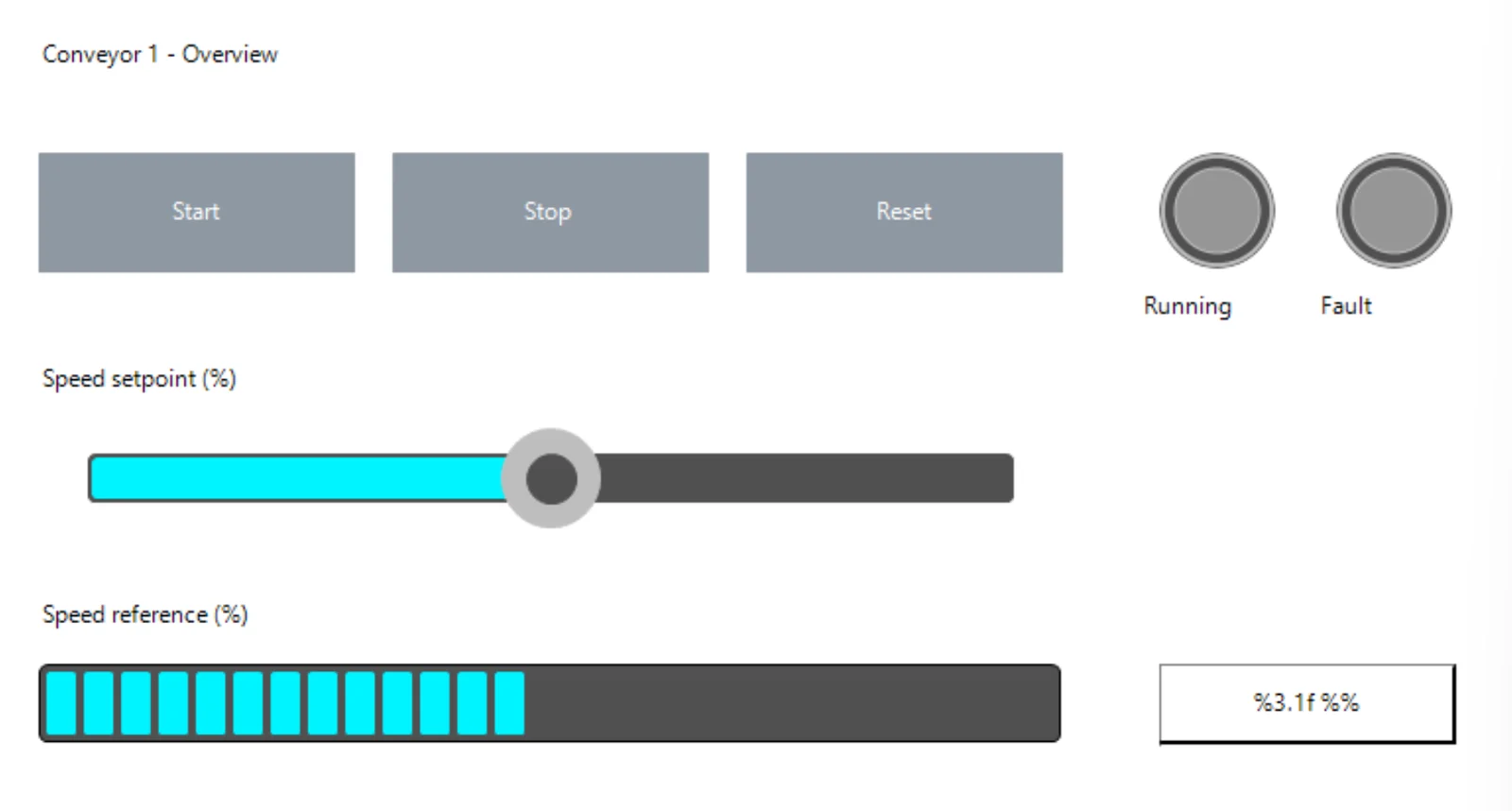
Create a visualization page VISU_Overview for the conveyor in PLC_PRG:
Start, Stop and Reset buttons, lamps for bMotorOn and bFault,
a slider for the speed setpoint rSpeedSet and a bar and a text field for rSpeedAct.
Lay it out in rows and check the layout.
WebVisu and TargetVisu
New visualization output defaults to WebVisu with isotropic scaling and the client size detected automatically, so the page fills the browser proportionally without being stretched. A local TargetVisu can be added for a panel. Existing configurations and scaling are kept unless you ask for a change, and pages that look too small, too large or stretched can be repaired without rebuilding them.
Limits
Visualization pages need CODESYS V3.5 SP20 or newer. The 11 element types cover typical operator pages: commands, status, setpoints and values. Trends, alarm tables, images, meters and gauges are not created by the AI today; add them in the CODESYS editor where needed.
Bindings connect to variables that exist in the project, so it works best when the AI writes the logic and the page in the same session. See Structured Text with AI for the logic side.
Try it on your own CODESYS project
Rung Coder is free for 2 months from your first sign-in, with no payment method needed. Windows 10/11 and CODESYS V3.5 SP18 or newer.